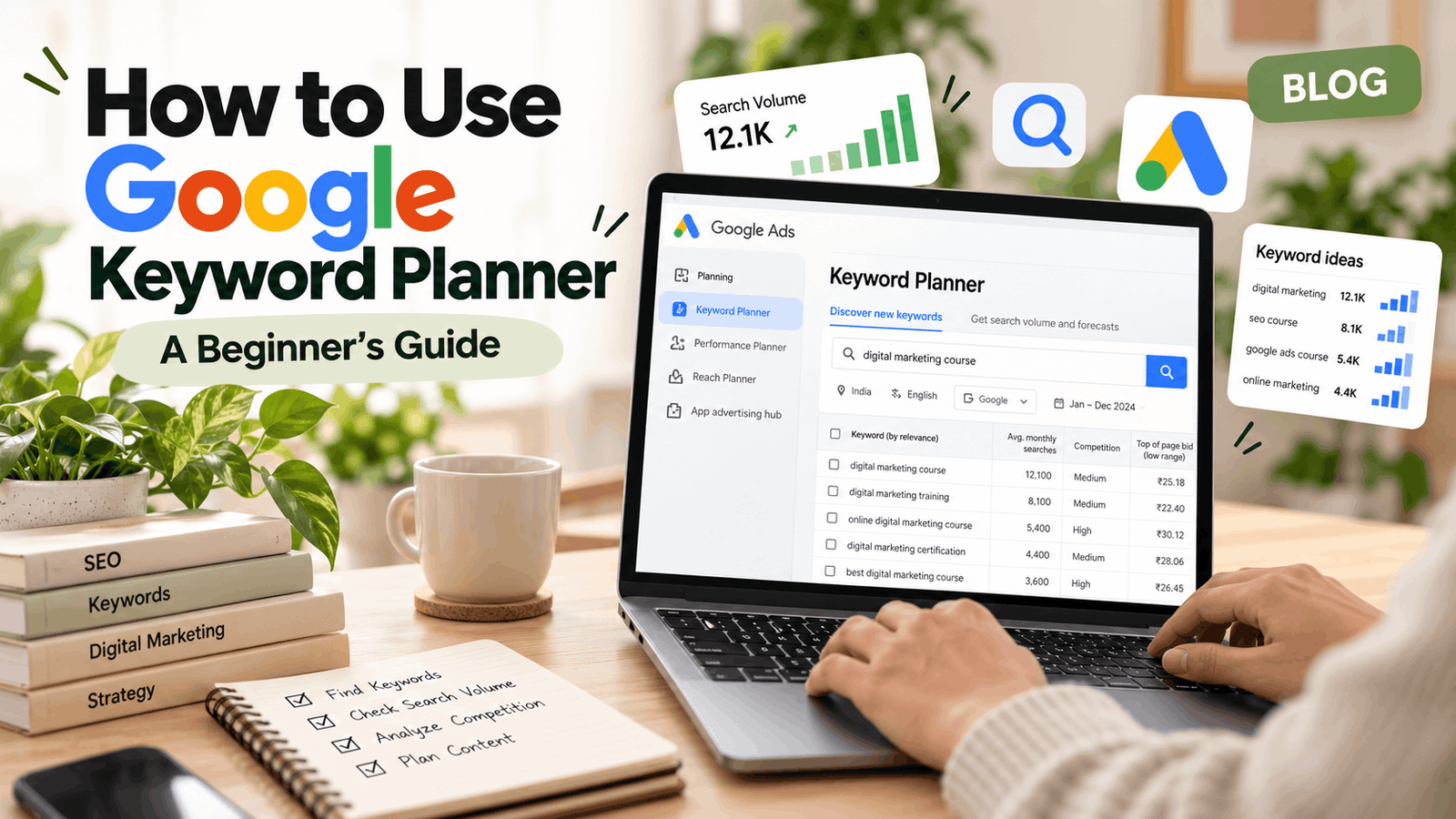
To use Google Keyword Planner, sign in to Google Ads, create an account without a campaign, and open Tools → Planning → Keyword Planner. Click Discover new keywords, type a seed keyword or your website URL, and set your location and language. Then read the monthly searches, competition and bid columns, and save the best ideas to a plan.
It is free, and you do not have to run ads. Setup usually takes only a few minutes.
Here are the same steps in short:
- Sign in to Google Ads and create an account without a campaign.
- Open Tools → Planning → Keyword Planner.
- Choose Discover new keywords and add seed keywords or a website URL.
- Set your location, language and dates, then click Get results.
- Filter the list by relevance and search intent, then add the best keywords to a plan.
Why Most Beginners Pick the Wrong Keywords
You spend hours writing a blog post. You hit publish. Then you wait, and nobody visits.
It is a painful feeling, and it happens to almost every beginner in SEO. The writing was fine. The topic was the problem. Either no one was searching for it, or the competition was too strong for a new website.
That is the real fear: wasting weeks on content that never ranks.
The fix is keyword research. And the easiest place to start is Google Keyword Planner, because it shows what real people type into Google, using Google’s own data.
In this guide, you will learn how to set it up, read the numbers, and choose keywords with confidence. These are the same keyword research basics covered in the SEO module of our digital marketing course in Jaipur, where students work on SEO for live websites.
What Is Google Keyword Planner?
Google Keyword Planner is a free keyword research tool inside Google Ads. Google built it for advertisers, but bloggers, students and SEO beginners use it every day. The reason is simple: the data comes straight from Google. You may also see it called Google Ads Keyword Planner or the Keyword Planner tool. They all mean the same thing.
Here is what it shows you:
- Keyword ideas: new search terms related to your topic
- Search volume: about how many people search a term each month
- Competition: how many advertisers want that term
- Bid estimates: what advertisers may pay per click, which hints at buyer interest
Think of it like a market survey. Before opening a shop, you check what people in the area want to buy. Keyword Planner does the same job for Google search.
Why Use It for SEO Keyword Research?
People search in many different ways. Google has said that about 15% of the searches it sees each day are completely new. Google’s John Mueller later said the number still hovers around 15%, even with AI search.
That means people keep asking specific, long questions. If you know those phrases, you can write pages that answer them clearly.
New to keyword research? Start with our Hinglish guide, Keyword Research Kaise Kare? Free Tools se Step-by-Step Guide, then come back here. If SEO itself is new to you, read SEO Kaise Kare? Step-by-Step Beginner Guide first.
Keyword Planner helps because:
- The data comes from Google, not from guesswork
- You can target a country, a state or a city
- It gives you many related phrases, so you can cover a whole topic and not just one keyword
- It is free to use with a Google Ads account
The third point matters most for topical authority. Covering a topic in depth helps readers and shows real expertise, and a long list of related keyword ideas is where that starts. Learn more in our guide on what is a content pillar.
What You Need Before You Start
You do not need any special skills. You only need three things:
- A Google (Gmail) account
- A Google Ads account, which is free to create
- A few minutes for the first setup
Can You Use Google Keyword Planner Without Running Ads?
Yes. Keyword Planner lives inside Google Ads, but you do not have to launch an ad. Google’s own sign-up guide says you can skip campaign recommendations while creating your account, and you also get the option to create an account without a campaign.
Google will ask for your billing country, time zone and currency. Depending on your account, it may also ask for payment details. You are not charged for using the tool. Charges happen only if you run ads.
Older guides tell you to click Switch to Expert Mode first. Google’s screens change often, so look for the option that lets you skip campaign creation and go to the account.
The One Catch: Volume Ranges
Accounts with no active ad spend usually see search volume as broad ranges, like 10–100, 1K–10K or 10K–100K, instead of exact numbers. Exact figures usually need an active campaign. You can still do good keyword research with ranges, and the data section below shows how.
Planning to run ads later? Our Google Ads Kaise Chalaye? beginner guide shows you how.
Step-by-Step: How to Use Google Keyword Planner
This simple Keyword Planner tutorial has seven steps. Menu names can look a little different on your screen, but the flow stays the same.
Step 1: Sign In to Google Ads
Go to ads.google.com and sign in with your Gmail account. New to Google Ads? Create an account. When Google pushes you to build a campaign, skip it.
Step 2: Finish the Account Setup
Choose Create an account without a campaign. Older screens call this Switch to Expert Mode. Then confirm your billing country, time zone and currency, and submit.
If your account stays in Smart Mode, the Keyword Planner menu may not appear. Switching to Expert Mode fixes this for most people.
Step 3: Open the Tool
Click the Tools icon at the top right. Under Planning, click Keyword Planner. Inside Google Keyword Planner, you will see two main options:
- Discover new keywords: find fresh ideas from a seed keyword or a website
- Get search volume and forecasts: check numbers for a list you already have
Can’t see it? Finish your account setup first. Then check that you are in Expert Mode.
Step 4: Click “Discover New Keywords”
Beginners should start here. It builds a big list of keyword ideas for you.
Step 5: Add Seed Keywords or a Website
Seed keywords are simple words that describe your topic. You can add up to 10 words or phrases. Or, choose Start with a website and paste a page URL. Google reads the page and suggests related ideas.
For example, a Jaipur institute could enter:
- digital marketing course
- SEO training
- Google Ads classes
Use the words your customers really say. In India, that often includes Hinglish phrases too.
Step 6: Set Location, Language and Dates
Pick the place where your customers live. You can choose India, a state like Rajasthan, or a city like Jaipur. Then choose the language, such as English or Hindi.
Check the date range as well. Searches for courses, exams and festivals rise and fall with the seasons.
Step 7: Review, Filter and Save
Click Get results. Now you will see a table of ideas. Then:
- Use filters to narrow by monthly searches, competition or words in the keyword.
- Tick the boxes next to the keywords that fit your business.
- Click Add to plan to save them.
- Download the list as a CSV file to share or sort in a sheet.
Do not pick keywords only by the biggest numbers. The next section shows how to read the data the right way.
Bonus: How to Use “Get Search Volume and Forecasts”
Use this option when you already have a keyword list, for example from a competitor page or your own notes.
- Click Get search volume and forecasts.
- Type or paste your keywords, or upload a CSV file.
- Submit the list and review the numbers for those exact keywords.
This option also shows forecasts, such as expected clicks and cost, which matter if you plan to run ads.
Want a trainer to guide you through this live? Keyword research is part of the SEO module in our digital marketing course in Jaipur. You can book a free demo class and see how we teach it.
How to Read Google Keyword Planner Data
The results page can look scary at first. It is just a table. Here is what each column means and how a beginner should use it.
| Column | What it means | How to use it |
| Keyword | The phrase people type into Google | Pick phrases that match your page topic |
| Avg. monthly searches | Average searches per month (shown as a range without ad spend) | Compare keywords with each other. Do not promise exact traffic |
| Three month / year-over-year change | How searches are rising or falling | Spot growing topics and seasonal peaks |
| Competition | Low, Medium or High: how many advertisers bid on the term | Shows ad demand, not SEO difficulty |
| Top of page bid (low and high range) | What advertisers may pay to appear at the top | A high bid often means people are ready to buy |
How to Understand Volume Ranges
When you see a range, treat it like a rough size, not an exact count.
- 10–100 searches: very niche. Good for specific questions and local topics.
- 100–1K searches: small, but often easier for a new site to win.
- 1K–10K searches: a solid target once your site has some trust.
- 10K–100K or more: big and crowded. Expect strong competition.
In short, compare keywords inside the same range, then check the real search results before you decide.
Keyword Planner Terms in Simple Words
| Term | Simple meaning |
| Seed keyword | The word or phrase you type in to start |
| Keyword idea | A related phrase that Google suggests |
| Average monthly searches | About how many times people search a phrase each month (also called search volume) |
| Long-tail keyword | A longer, more specific phrase, usually three or more words |
| Search intent | What the searcher wants: to learn, to compare or to buy |
| Top of page bid | What advertisers may pay for a click at the top of the results |
| Keyword difficulty | How hard it is to rank in normal results (not shown in the Planner) |
| Keyword clustering | Grouping related keywords into one topic |
Why “Competition” Is Not SEO Difficulty
This is the most common beginner mistake. The Competition column is about paid ads. It does not tell you how hard it is to rank in normal (organic) results.
A keyword can be “Low” for advertisers and still be very hard to rank for, because big websites already own page one. Keyword Planner also does not show keyword difficulty or search intent on its own. You need to add those checks yourself.
Do This 3-Minute Check Before You Choose a Keyword
Open Google in a new tab and search your keyword. Then ask:
- Who ranks? Big brands, or small sites like yours?
- What type of page ranks? Blog posts, product pages, videos or maps? This is the search intent.
- What extra boxes show up? AI Overviews and People Also Ask boxes show you the questions your page should answer.
Cross-Check With Free Tools
Because ranges are broad, double-check your best ideas:
- Google Trends: shows how interest changes over time, on a scale of 0 to 100
- Google Search Console: shows the real searches your own site already appears for
- Google autosuggest and People Also Ask: show long-tail phrases people really type
After you publish, track visits and actions in Google Analytics 4. Our Google Analytics 4 in Hindi guide explains it step by step.
Real-Life Example: How to Find Keywords for a Jaipur Institute’s Blog
Say you run a small digital marketing institute in Jaipur. You want blog topics that bring in new students.
You enter “digital marketing course” as a seed keyword. You set the location to Jaipur and the language to English and Hindi. Then you click Get results.
The list that comes back is long. The smart move is to sort the ideas by what the searcher wants. This table is an example. Your own numbers will depend on your account, so it shows intent, not volume.
| Keyword idea (example) | Search intent | Best content to write |
| what is digital marketing | Learn something | Beginner’s guide |
| how to learn SEO step by step | Learn something | Step-by-step blog post |
| digital marketing course in Jaipur | Compare and choose | Course page with local details |
| digital marketing course fees in Jaipur | Ready to buy | Fees page with FAQs |
| best digital marketing institute near me | Compare and choose | Comparison page |
One page cannot rank for all of these. Use blog posts for “learn” phrases. Use service and course pages for “choose” and “buy” phrases.
How to Choose the Right Keywords
Use this simple checklist for every keyword on your list:
- Is it relevant? It must match what you really teach or sell.
- Does the intent match? If Google shows blog posts, write a blog post. Do not force a sales page.
- Can you win? A keyword in the 100–1K range with a clear topic often beats a 10K phrase you have no chance on.
- Is it long-tail? Phrases with three or more words, like “keyword research for beginners in Hindi,” bring more focused visitors.
- Is it a question? “How,” “what” and “why” phrases are perfect for clear, direct answers.
Build Topical Authority With Keyword Groups
Do not treat keywords as a random list. Group them by topic. Then write one main page and several supporting posts, and link them together.
For example, a topic group on SEO basics could include:
- A main guide: SEO Kaise Kare? Step-by-Step Beginner Guide
- Supporting posts: keyword research, on-page and off-page SEO, Google Analytics 4 and Google Business Profile setup for local SEO
This shows Google that your site covers the whole topic, not just one phrase.
How to Cluster Keywords in 4 Steps
- Download your keyword list as a CSV file.
- Sort the keywords by topic, like “keyword research,” “local SEO” or “Google Ads.”
- Pick one main keyword for each page and two to four supporting keywords.
- Link the pages to each other with clear anchor text.
Write for People and for AI Search
Google’s AI Overviews and other AI search tools tend to pull from pages that answer a question clearly. So write with that in mind:
- Put a short, direct answer near the top
- Use question-style headings taken from People Also Ask
- Keep sentences simple and paragraphs short
- Add your own examples and experience, so the page is more than a copy of others
The basics do not change. Helpful, honest, people-first content is still what wins. For the full playbook, read our guides on how to rank in Google AI Overview and Google AI Overview in 2026.
Keyword Planner vs Other Keyword Research Tools
No single tool does everything. Here is how the popular ones compare.
| Tool | Cost | Best for | Main limit |
| Keyword Planner | Free with a Google Ads account | Keyword ideas, volume ranges and bid data from Google | Ranges without ad spend. No keyword difficulty score |
| Google Trends | Free | Seeing which topics are rising or falling | Shows relative interest (0–100), not search counts |
| Google Search Console | Free | Real searches your own site already gets | Works only for sites you own |
| Autosuggest and People Also Ask | Free | Long-tail and question ideas | No volume data |
| Paid tools like Ahrefs or Semrush | Paid monthly plan | Keyword difficulty and competitor research | Cost, and numbers are still estimates |
A simple plan for beginners: use Keyword Planner for ideas, Google Trends for timing, and Search Console for proof.
7 Common Mistakes Beginners Make
- Reading Competition as SEO difficulty. It only measures advertisers.
- Chasing the biggest numbers. High-volume terms are crowded. Start smaller.
- Ignoring search intent. A great keyword on the wrong page type will not rank.
- Forgetting to set a location. Results for all of India can be very different from results for Jaipur.
- Using only one seed keyword. Try 5 to 10 seeds, and mix English with Hinglish.
- Never checking the real results. The search page tells you more than any column.
- Doing keyword research once. Search habits change, so update your list.
Keyword Planner Not Showing or Not Working? Quick Fixes
| Problem | Likely cause | Fix |
| Keyword Planner is missing from the menu | Smart Mode, or account setup not finished | Switch to Expert Mode and complete setup |
| You only see ranges | No active ad spend | Read ranges as bands and cross-check with Trends and Search Console |
| “No data” for a keyword | Seed is too narrow or very new | Use a broader seed and check your spelling |
| Results feel too broad | Location is set too wide | Choose your city and add area names |
Pro Tips for Smarter Keyword Research
- Paste a competitor’s page into Start with a website to get keyword ideas based on that page.
- Save one plan per topic, so your lists stay clean.
- Add words like “how,” “best,” “fees,” “near me” and “in Hindi” to your seeds.
- Refresh your keyword list every three months.
- Write the page for the reader first. Keywords come second.
Local SEO: Keyword Research for Jaipur Businesses
If your customers live in Jaipur, local keywords bring the right visitors faster than broad national ones. Here is how to set that up.
- Set your location to Jaipur (or Rajasthan, if you serve the whole state).
- Add area names people really use, such as Malviya Nagar, Vaishali Nagar, C-Scheme and Mansarovar.
- Add local words like “in Jaipur” and “near me” to your seed keywords.
- Try Hindi and Hinglish phrases. Many people search the way they speak.
- Use the best phrases in the right places: page titles, headings, service pages and your Google Business Profile.
Example local phrases to test (examples only, so check the numbers in your own account):
- digital marketing course in Jaipur
- digital marketing course in Mansarovar
- SEO course in Vaishali Nagar
- Google Ads classes in Jagatpura
Two extra trust signals help local rankings. Keep your business name, address and phone number the same everywhere online. And ask happy customers or students for honest Google reviews. Also keep your pages fast and easy to read on mobile.
See how local landing pages are built: Digital Marketing Course in Mansarovar, Jaipur and Best Digital Marketing Course in Swarn Path Jaipur. To set up your free business listing, read Google My Business Kaise Banaye?
FAQs: People Also Ask About Keyword Research
What is Google Keyword Planner used for?
It is used to find keyword ideas and see how often people search for them. It also shows competition and bid estimates. Beginners use it to plan blog topics, SEO pages and Google Ads campaigns.
Is Google Keyword Planner free?
Yes. The tool is free, but you need a Google Ads account to sign in. You can create that account without launching a campaign. Without active ad spend, search volume usually shows as ranges instead of exact numbers.
Do I need to run ads to use Keyword Planner?
No. You can create a Google Ads account without a campaign and still open the tool. Google may ask for billing details during setup. You are not charged for using the tool itself. Charges come from running ads.
How do I find low competition keywords?
Use the Competition filter and choose Low. Then look for long-tail phrases with three or more words. Finally, search the phrase on Google and see whether small websites already rank on page one.
Can I use Keyword Planner for SEO and not just for ads?
Yes. It was built for ads, but the ideas and volume ranges come from Google, so many SEOs use it for blogs and web pages. Add keyword difficulty and search intent checks yourself, because the tool does not show them.
Can I find keywords for Jaipur or for Hindi searches?
Yes. Set the location to India, Rajasthan or Jaipur, and choose Hindi or English as the language. Add area names like Malviya Nagar and Hinglish phrases to find real local searches.
Where can I learn keyword research and SEO in Jaipur?
Keyword research is part of the SEO module in the digital marketing course in Jaipur at Learn Digitally Simply. You can book a free demo class to see how it is taught.
Final Thoughts: Start Small and Learn by Doing
Google Keyword Planner may look technical at first, but a few clicks are enough to get useful ideas. Start with one topic, one seed keyword and one location. Read the data slowly, check the real search results, and pick keywords that match what people truly want.
Keyword research is a skill. Like any skill, it gets easier with practice.
Learn Keyword Research Hands-On at Learn Digitally Simply, Jaipur
Reading is a good start. Practice is faster. At Learn Digitally Simply in Jaipur, keyword research is part of the SEO module in our digital marketing course in Jaipur. You learn keyword research, on-page SEO and off-page SEO, and you work on SEO for live websites. You also create real Google Ads campaigns.
Take your next step:
- Book your free demo class. There is no commitment.
- Chat with a mentor on WhatsApp: +91 63671 55512
- Call us: +91-63671 55512
- Visit us: 1st Floor, 24/66, Sector II, Swarn Path, Shukalpura, Mansarovar, Jaipur, Rajasthan 302020
- Keep learning: read more guides on our Insights page
Book your free demo class at Learn Digitally Simply and take your first practical step into digital marketing.